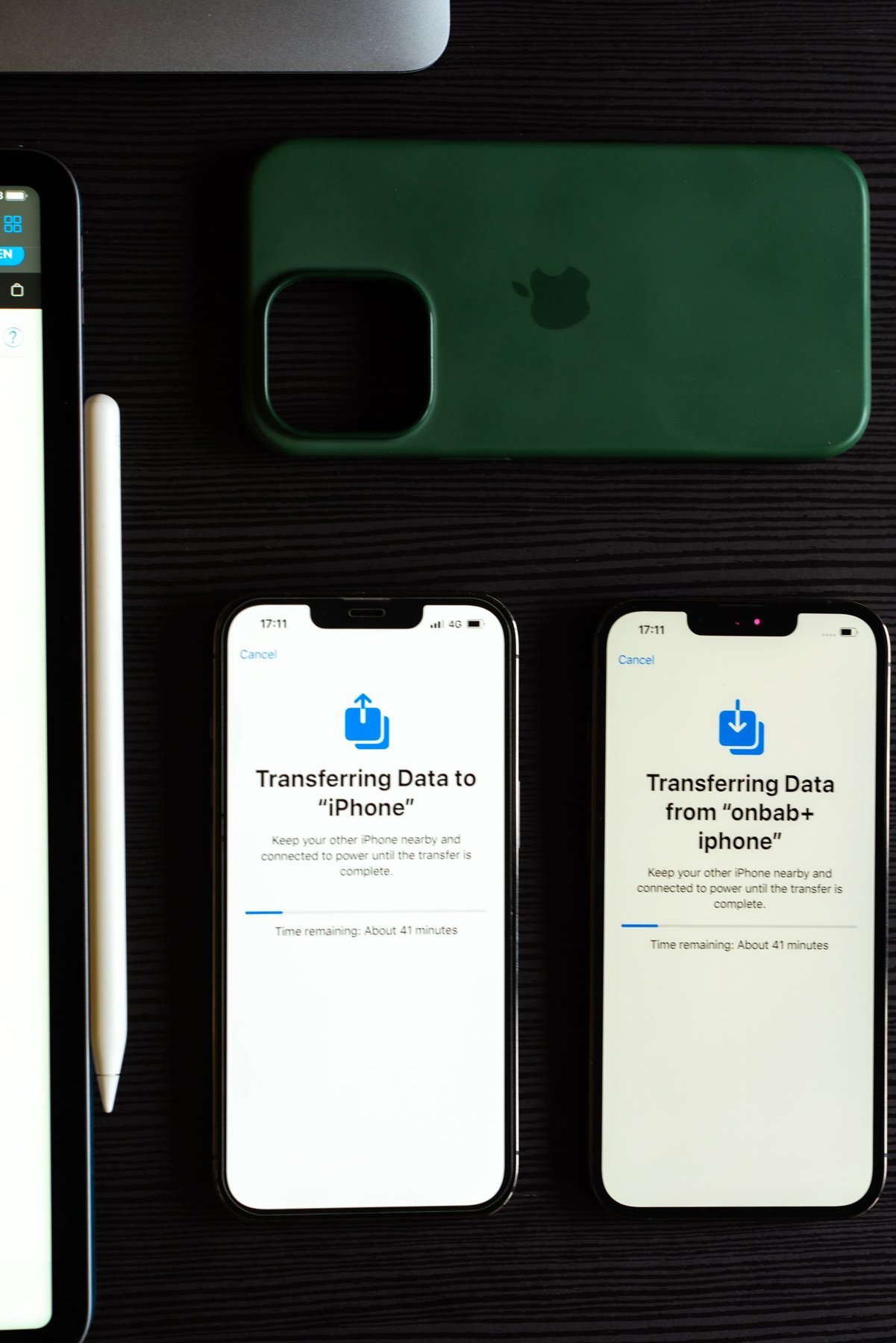
After changing phones, every picture may appear in the gallery even though some are only previews that download on demand. A photograph sent through a messaging app may also differ from the original capture. Preserving originals therefore means checking both the transfer method and its result, rather than simply counting visible thumbnails.
Define what needs to be preserved
The original begins with the initial image file and its existing metadata. An edited version is an additional output. Live Photos, motion photos and RAW captures may include extra files or special containers. A single JPEG copy can preserve the visible appearance without retaining all those components.
Decide whether albums, favourites, captions and edits matter too. Some of that information lives in a photo library or database rather than entirely inside each image file. A folder of files and a transferred photo library therefore do not necessarily serve the same purpose. For a lasting archive, keeping unchanged originals separately from finished edited outputs can be useful.
Choose an export intended for originals
Use an option that exports unmodified originals, or a documented import method from the device manufacturer. For iCloud Photos, Apple describes downloading or exporting original files. Available commands depend on the device. Read the export options: a high-quality setting does not necessarily mean an unchanged file.
With optimized device storage, a download may be required first. Allow a reliable connection and enough free space. Begin with a small selection containing different capture types: an ordinary photo, an edited picture, a motion capture and RAW if relevant. This reveals whether the method supports what you need before you transfer a large library.
Do not assume that messaging or social platforms are suitable archive transport. Services may resize, recompress or remove metadata. Some provide a separate file-transfer option; compare a sample even then. A screenshot of a photograph is a new capture of its display, not a replacement for the original.
Verify at the destination before deleting anything
Open several transferred files on the destination device, preferably without an active internet connection as well. Check pixel dimensions, capture date and file format. Matching file sizes alone do not prove identity; checksums can additionally verify a byte-for-byte copy. Different checksums are expected when you deliberately convert formats.
Check motion components and RAW files in a suitable application. Count associated files rather than photographs alone. An exported original may also look different from the edited gallery view. That is not automatically a transfer error; it may mean the edit was not rendered into the file.
Trace a small test transfer completely
Create a dedicated destination folder and export five to ten familiar photographs first. Choose pictures whose dates, editing state and capture types you can recognize. Record the export option used. Then open the files directly from that folder rather than through the still-synchronized gallery. Otherwise, you might unknowingly inspect the cloud version while the local copy remains incomplete.
For a second test, disconnect from the internet and reopen the files. Inspect an enlarged view as well. A visible thumbnail alone does not prove that the complete original is stored locally. For a motion capture, check both the still and moving components; for an edited photo, compare the original with the finished output you want to preserve.
If your destination application cannot open HEIF, RAW or an associated video file, distinguish unsupported formats from a damaged transfer. Retain the source and test it in a compatible application. Make an additional widely readable JPEG if useful, without treating it as equivalent to the preserved original. Once this small process works predictably, apply the same method to the whole collection.
Clean up only after an independent backup
Keep the source data until the copy is verified and another independent backup exists. A synchronized library may propagate deletions to several devices. Treat a second location as a backup only if its actual behaviour prevents the same deletion from immediately removing everything there too.